> For the complete documentation index, see [llms.txt](https://docs.easto.io/llms.txt). Markdown versions of documentation pages are available by appending `.md` to page URLs; this page is available as [Markdown](https://docs.easto.io/admin/how-to-apply-a-discount-code-to-subscription-products.md).
# How to apply a discount code to Subscription Products?
NOTE: There are 2 types of discount
* Discount Code: Fully supported by Shopify. You can create and manage discount code directly on Shopify Portal
* Automatic Discount: Have not supported yet
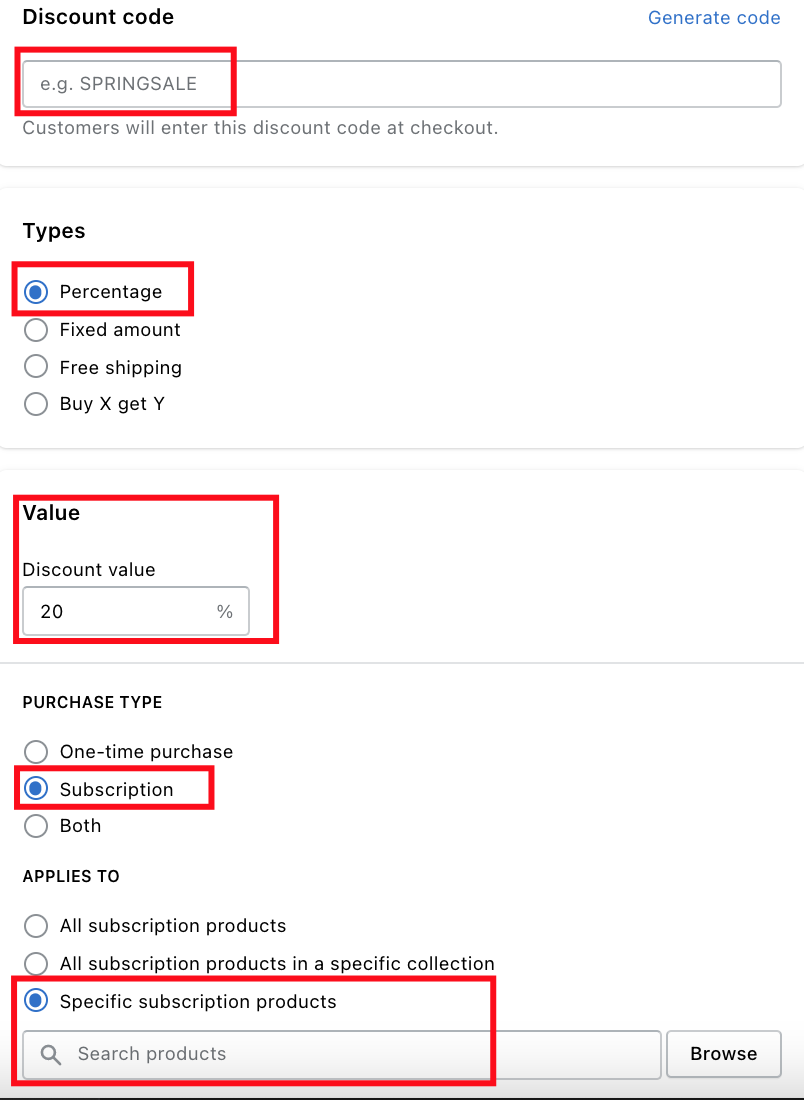
Let me guide you through a simple example to set up "a discount percentage" for a specific product
### Step 1:
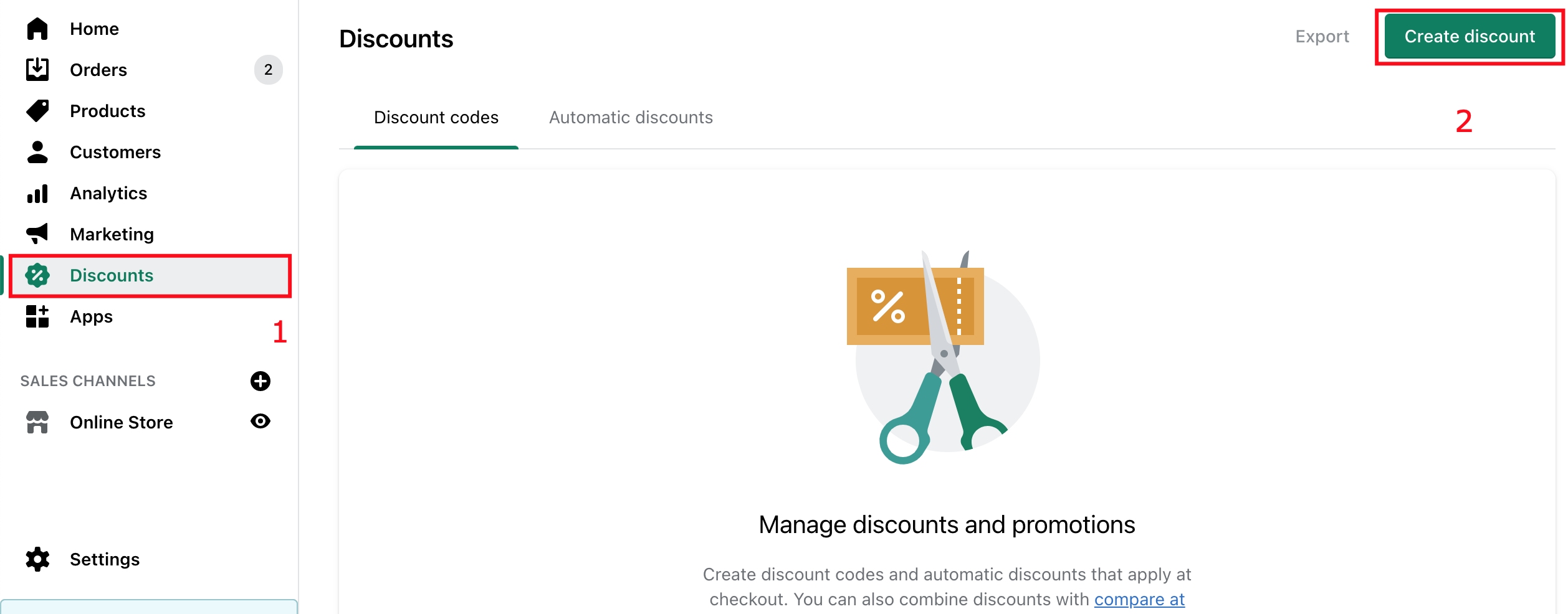
Come to **Shopify Admin -> Discounts -> Create Discount**
### Step 2:
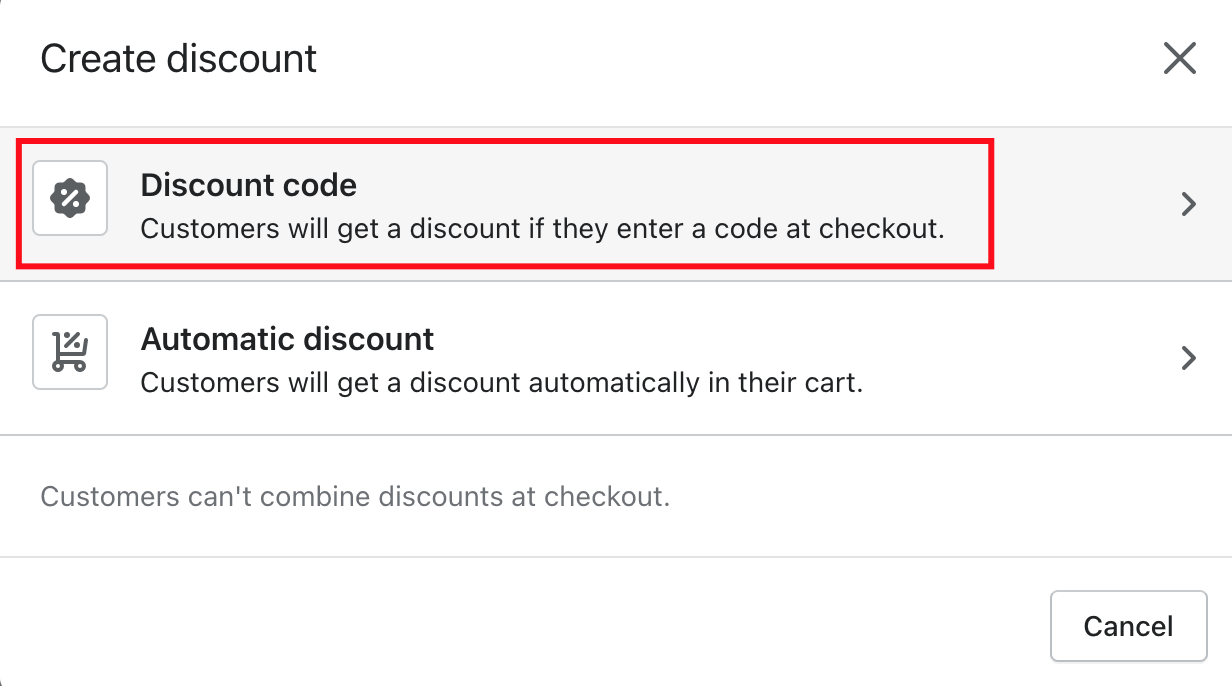
Select **Discount Code**
### Step 3:
Setting up your discount code rule
### Step 4:
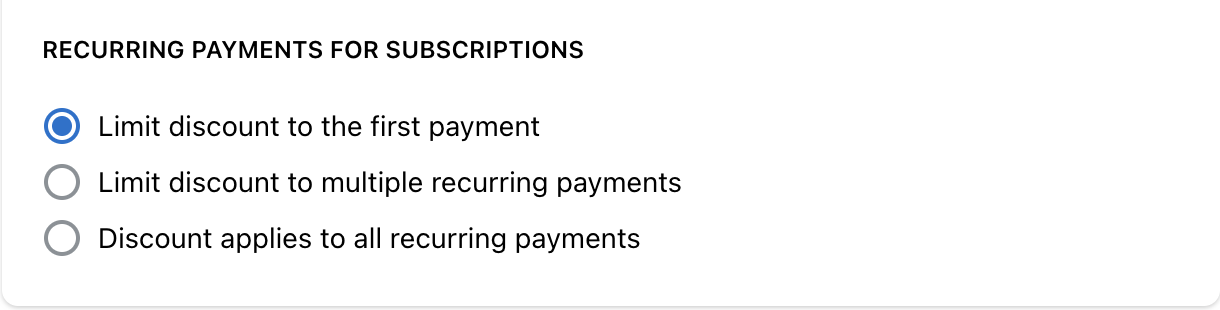
With Subscription Discount Code. You can choose to apply it to
* Just first payment of your customer subscription
* Multiple recurring payments. If you select this option, there will be another text box for you to enter the number of payments accepted discount code
* All recurring payments
### Step 5:
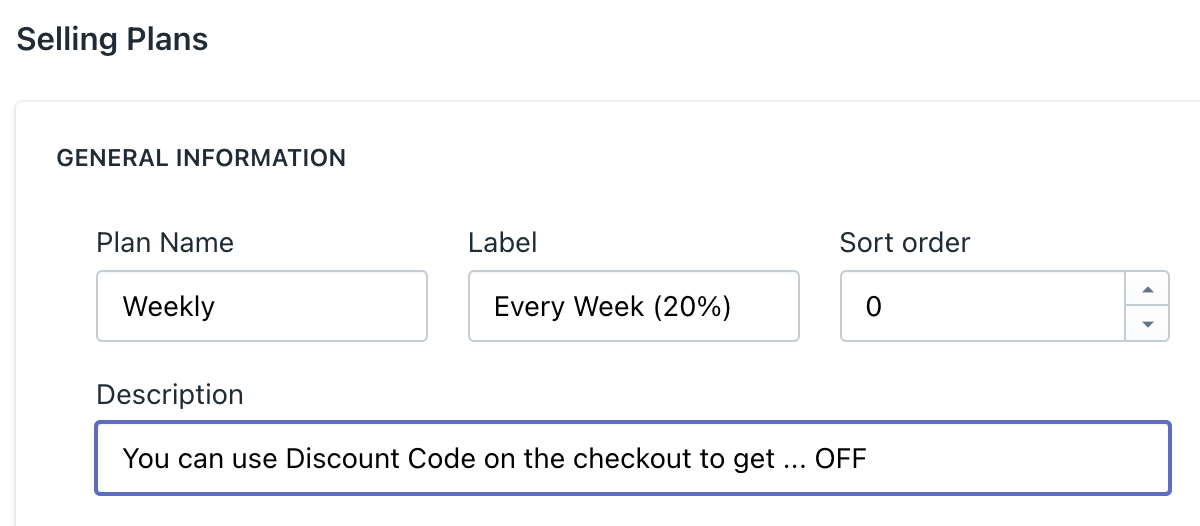
Go to our app, navigate to the selling plan section. You can edit the description as you want to notify your customers about the discount
### Step 6:
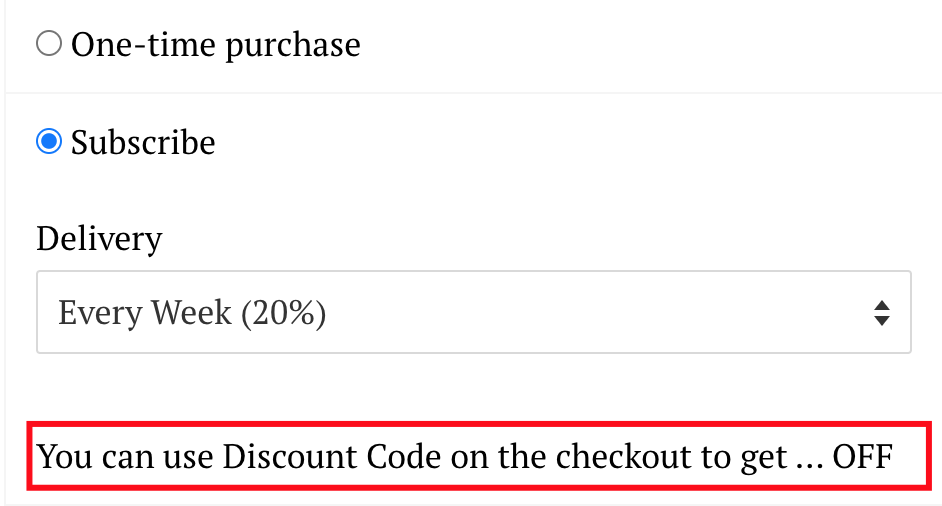
Recheck on the frontend product page.
If you need any support, drop us a line on the Chat section or email via [**support-sbc@bsscommerce.com**](mailto:support-sbc@bsscommerce.com)**.**