> For the complete documentation index, see [llms.txt](https://docs.easto.io/llms.txt). Markdown versions of documentation pages are available by appending `.md` to page URLs; this page is available as [Markdown](https://docs.easto.io/admin/how-to-create-a-subscription-plan.md).
# How to create a subscription plan?
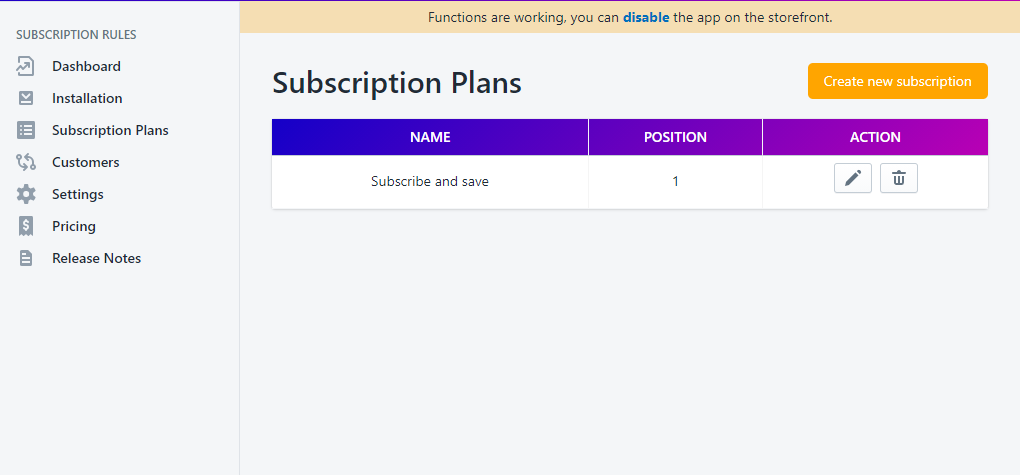
The process is very easy. After you install our app, please come to the **Dashboard Admin -> Subscription Plans** to start to create a subscription plan followed by these steps:
### Step 1:
Subscriptions Plans -> click button **"Create new subscription plan"**
### Step 2:
You will be redirected to a new window that will let you fill in the required information to create a subscription plan
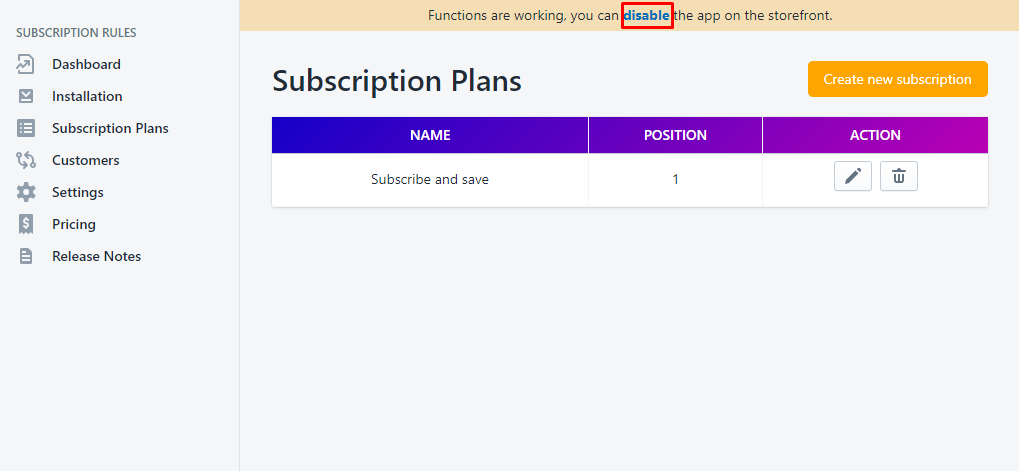
\*Remember to enable the app to make functions working on your storefront on **Settings**
### Step 3:
In the **General Information** section:
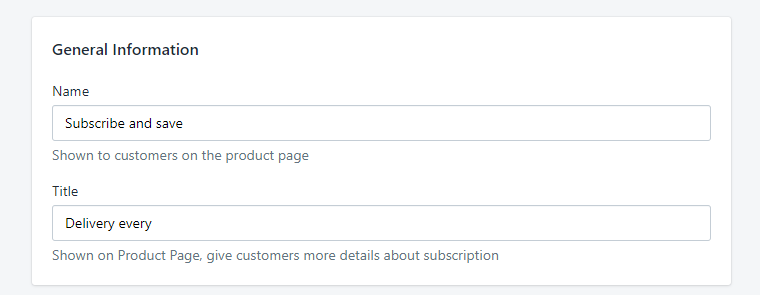
* **Name:** The name of the selling plan shown to customers on the product page
* **Title:** Shown on Product Page, give customers more details about Selling Plan
### Step 4:
In the **Plan** section:
* **Plan Name:** Displayed on Cart & Checkout
* **Label:** Label of plan selector on product page
* **Position:** in case you have any plan, this setting will be used to sort order
* **Description:** Give more details about your selling plan
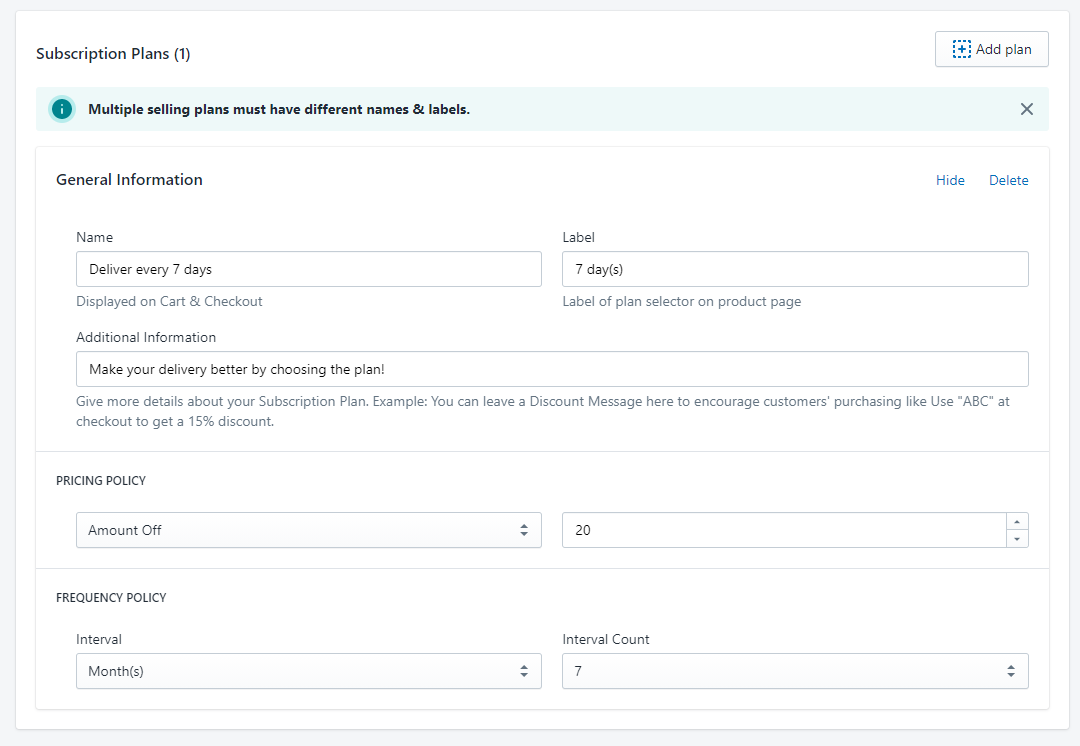
* **Pricing policy:** Define your subscription plan's price
* **Set a fixed price:** Customers will make a subscription with this fixed price. For Example: 30$, 40$,...
* **Percentage Off (%):** Customers will make a subscription with the discount percentage of your products. For Example Product A, B, C prices are 20$, 30$, 40$ in order. If you set the value equal to 20%, your customers will purchase with the price 16$, 24$, 32$
* **Amount Off:** Customers will make a subscription with a sale discount on your products. For Example Product A, B, C prices are 20$, 30$, 40$ in order. If you set the value equal to 10$, your customers will purchase with the price 10$, 20$, 30$

* **Frequency Policy:** define the recurring payment as days/weeks/months/years

* You can add as many plans as you needed and delete them as well
### Step 5:
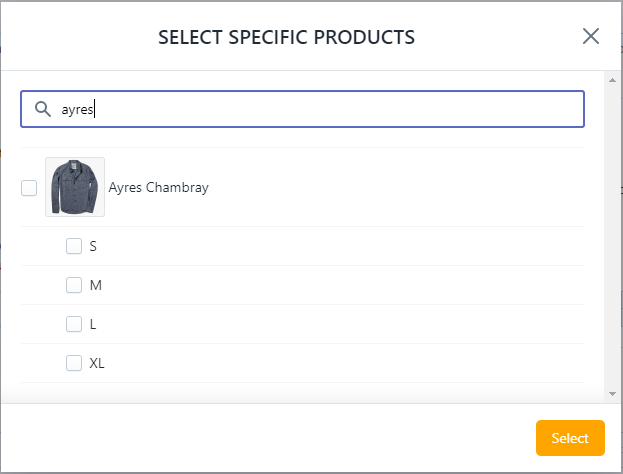
In the **Select Products** section, add your products to this subscription plan
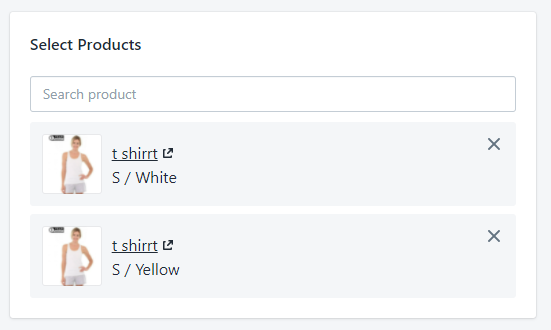
You can select per variant
### Step 6:
Save the subscription plan with the "**Save**" button

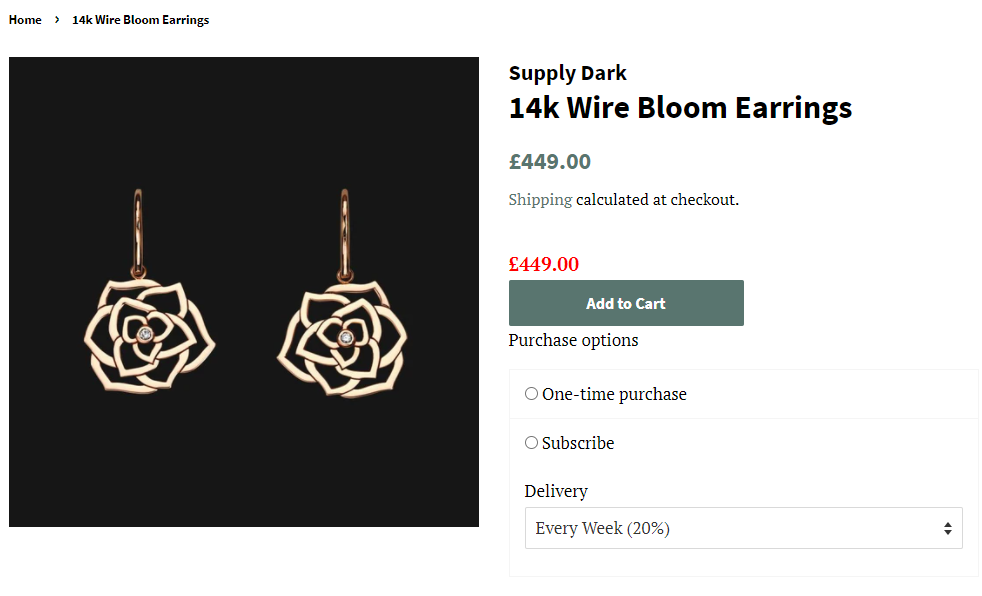
Congrats! Your first subscription has been created. Please recheck it on your product page:
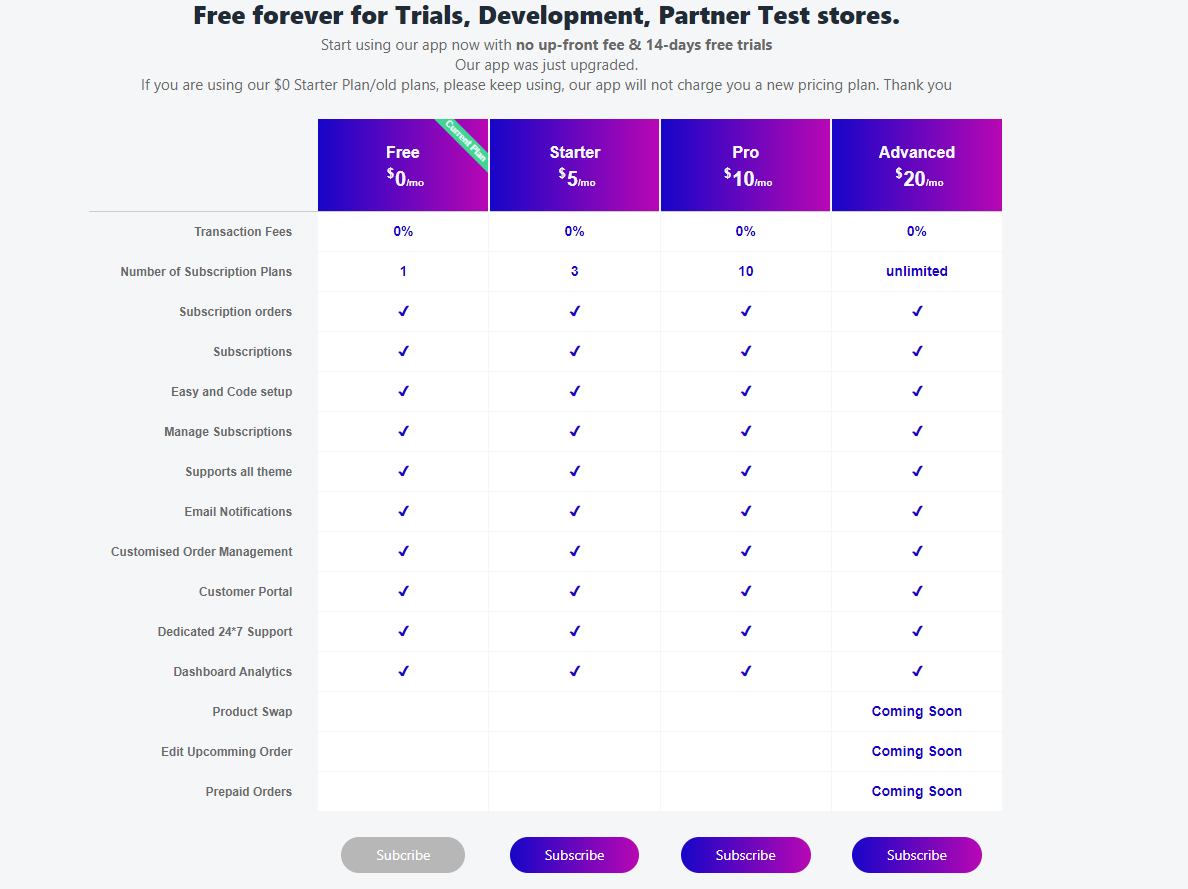
**Note:** For **FREE** plan, you can create only 1 subscription plan. Please upgrade to **Paid** plans (Starter, Pro and Advanced) to create and manage more subscription plans.
If you have further questions, feel free to contact us at [**support-sbc@bsscommerce.com**](mailto:support-sbc@bsscommerce.com)**.**