# How to create a subscription plan?
The process is very easy. After you install our app, please come to the **Dashboard Admin -> Subscription Plans** to start to create a subscription plan followed by these steps:
### Step 1:
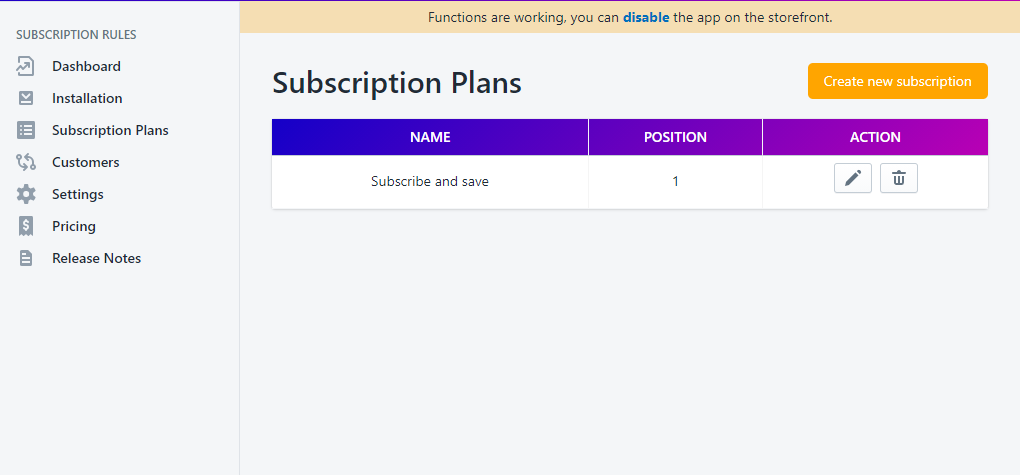
Subscriptions Plans -> click button **"Create new subscription plan"**
### Step 2:
You will be redirected to a new window that will let you fill in the required information to create a subscription plan
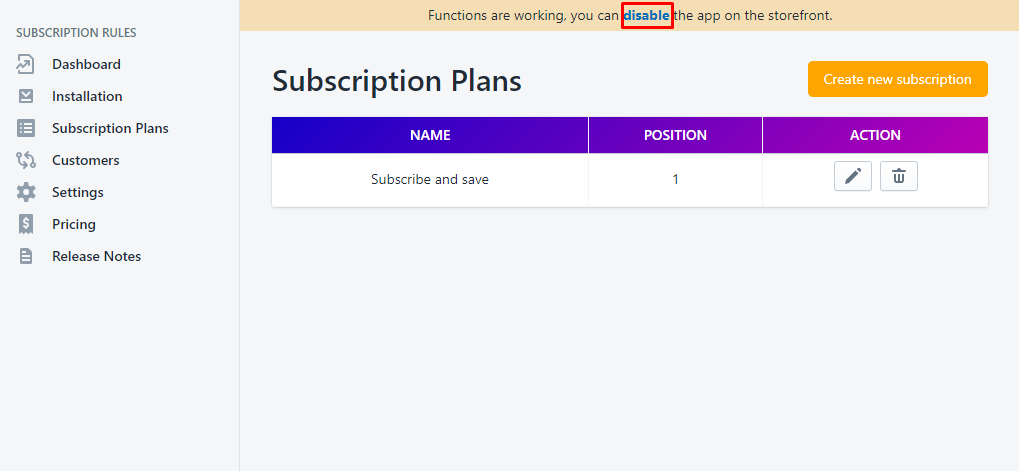
\*Remember to enable the app to make functions working on your storefront on **Settings**
### Step 3:
In the **General Information** section:
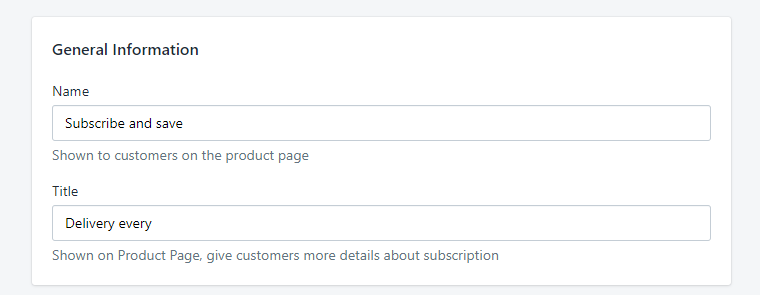
* **Name:** The name of the selling plan shown to customers on the product page
* **Title:** Shown on Product Page, give customers more details about Selling Plan
### Step 4:
In the **Plan** section:
* **Plan Name:** Displayed on Cart & Checkout
* **Label:** Label of plan selector on product page
* **Position:** in case you have any plan, this setting will be used to sort order
* **Description:** Give more details about your selling plan
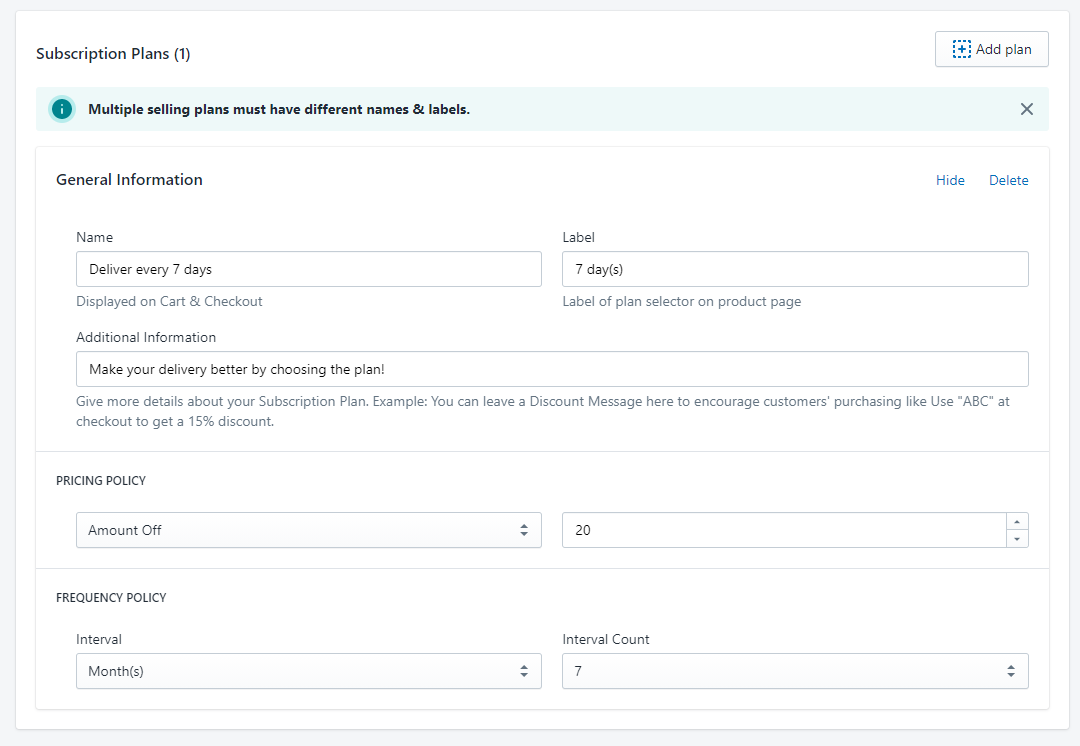
* **Pricing policy:** Define your subscription plan's price
* **Set a fixed price:** Customers will make a subscription with this fixed price. For Example: 30$, 40$,...
* **Percentage Off (%):** Customers will make a subscription with the discount percentage of your products. For Example Product A, B, C prices are 20$, 30$, 40$ in order. If you set the value equal to 20%, your customers will purchase with the price 16$, 24$, 32$
* **Amount Off:** Customers will make a subscription with a sale discount on your products. For Example Product A, B, C prices are 20$, 30$, 40$ in order. If you set the value equal to 10$, your customers will purchase with the price 10$, 20$, 30$

* **Frequency Policy:** define the recurring payment as days/weeks/months/years

* You can add as many plans as you needed and delete them as well
### Step 5:
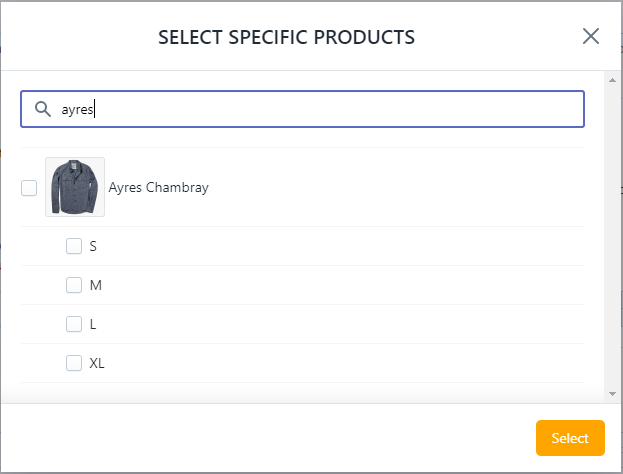
In the **Select Products** section, add your products to this subscription plan
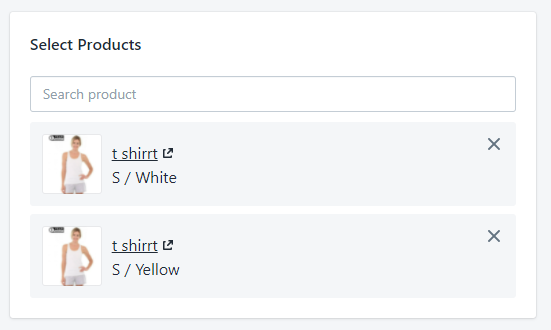
You can select per variant
### Step 6:
Save the subscription plan with the "**Save**" button

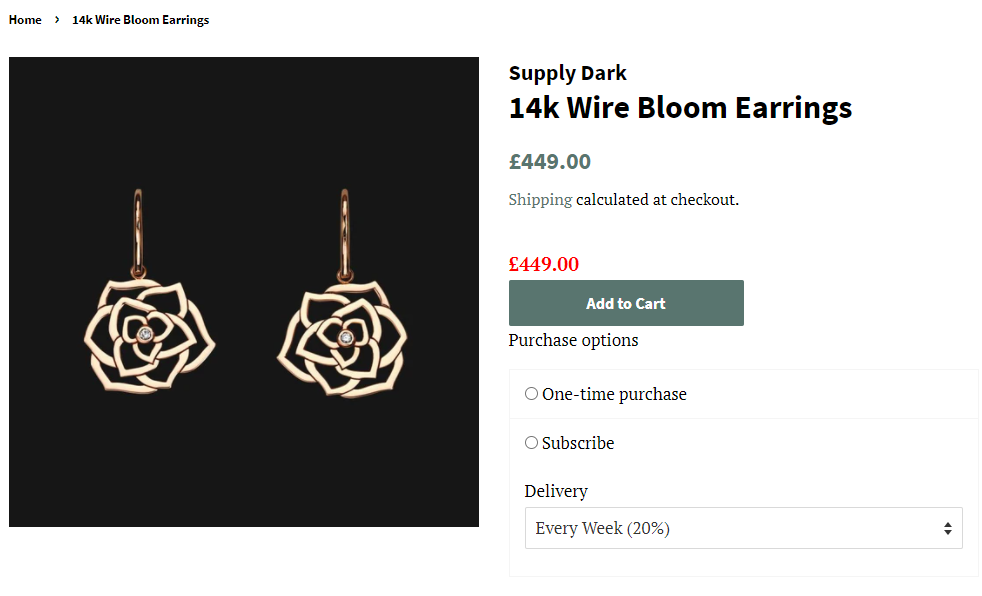
Congrats! Your first subscription has been created. Please recheck it on your product page:
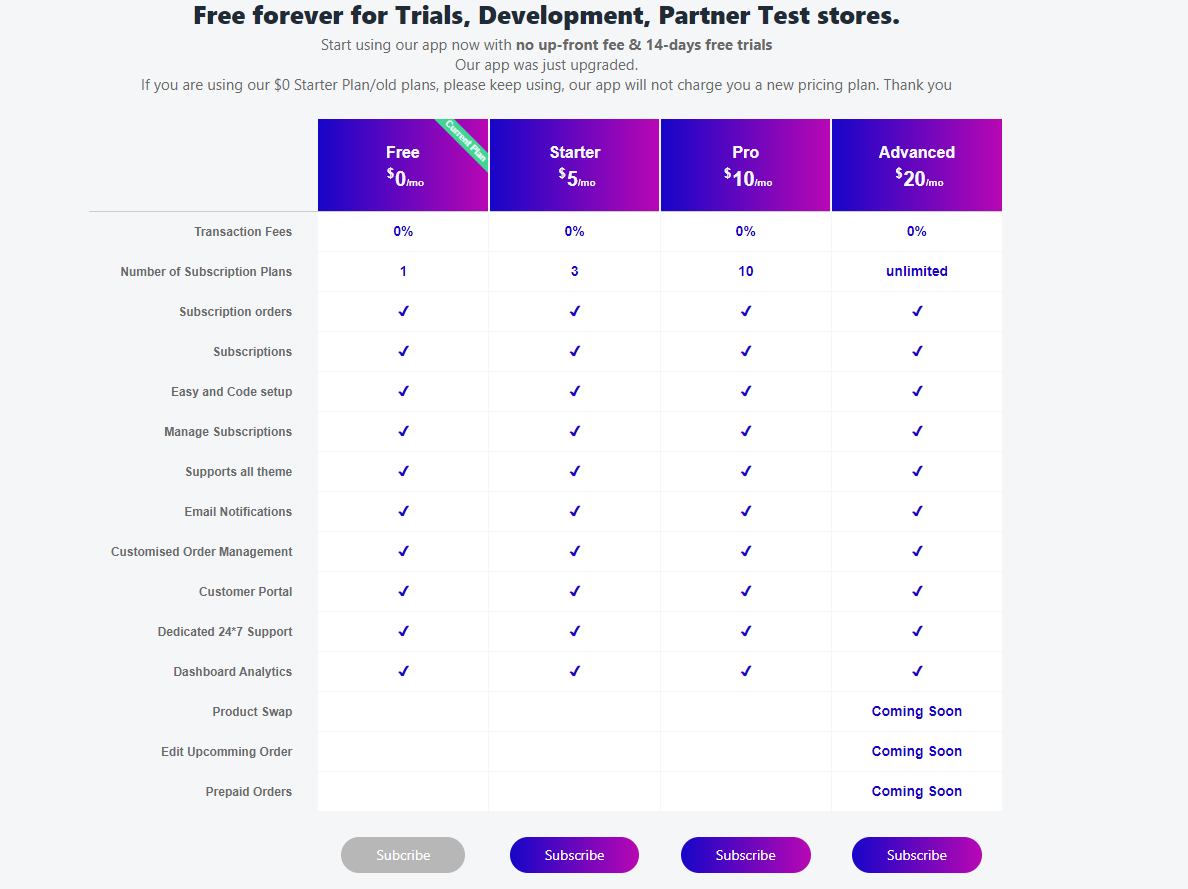
**Note:** For **FREE** plan, you can create only 1 subscription plan. Please upgrade to **Paid** plans (Starter, Pro and Advanced) to create and manage more subscription plans.
If you have further questions, feel free to contact us at [**support-sbc@bsscommerce.com**](mailto:support-sbc@bsscommerce.com)**.**
---
# Agent Instructions: Querying This Documentation
If you need additional information that is not directly available in this page, you can query the documentation dynamically by asking a question.
Perform an HTTP GET request on the current page URL with the `ask` query parameter:
```
GET https://docs.easto.io/admin/how-to-create-a-subscription-plan.md?ask=
```
The question should be specific, self-contained, and written in natural language.
The response will contain a direct answer to the question and relevant excerpts and sources from the documentation.
Use this mechanism when the answer is not explicitly present in the current page, you need clarification or additional context, or you want to retrieve related documentation sections.