# How to run test transactions, configure settings, and start selling?

> **Remember that: our Subscriptions & Recurring Pay app now just work with Shopify Payments**

Please follow these steps to test everything before launching:

### Step 1: Setting up Shopify Payments for your store <a href="#step-1-setting-up-shopify-payments-for-your-store" id="step-1-setting-up-shopify-payments-for-your-store"></a>

* Please follow this detailed guide of Shopify: <https://help.shopify.com/en/manual/payments/shopify-payments/setting-up-shopify-payments>
* Refer to this guide in case you need credit card information for testing: <https://help.shopify.com/en/manual/payments/shopify-payments/testing-shopify-payments>

### Step 2: Duplicating an existing product to test your new payment <a href="#step-2-duplicating-an-existing-product-to-test-your-new-payment" id="step-2-duplicating-an-existing-product-to-test-your-new-payment"></a>

You can keep it **UNPUBLISHED**, so it's not visible to customers during testing process.

### Step 3: Assign your testing product to Subscription Plan <a href="#step-3-assign-your-testing-product-to-subscription-plan" id="step-3-assign-your-testing-product-to-subscription-plan"></a>
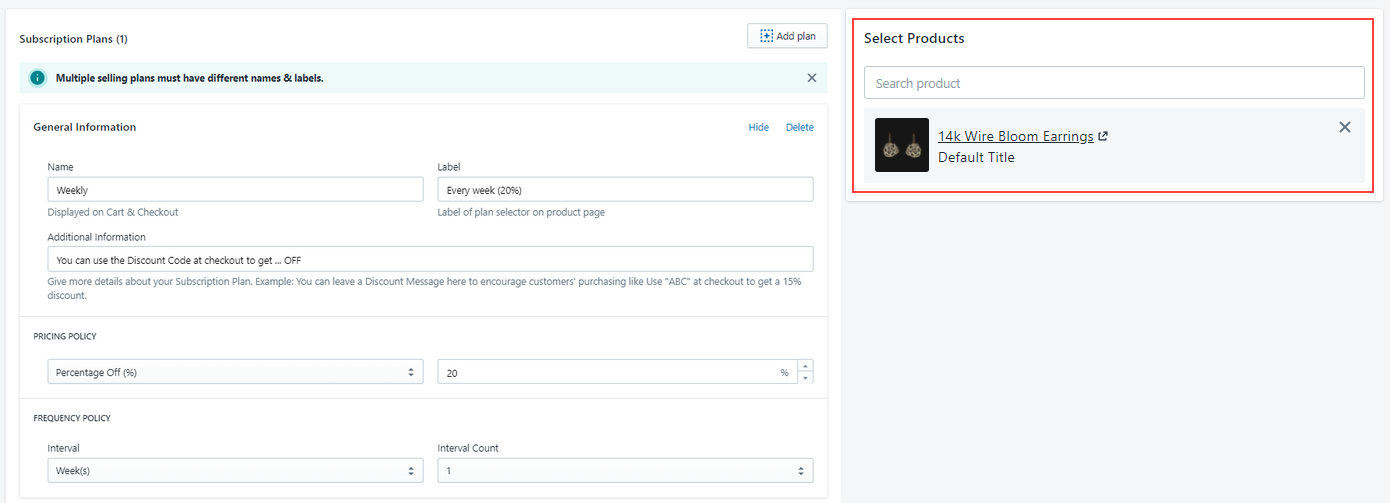
![](http://wiki.bsscommerce.com/wp-content/uploads/2021/04/subscription-plan-example-1.png)

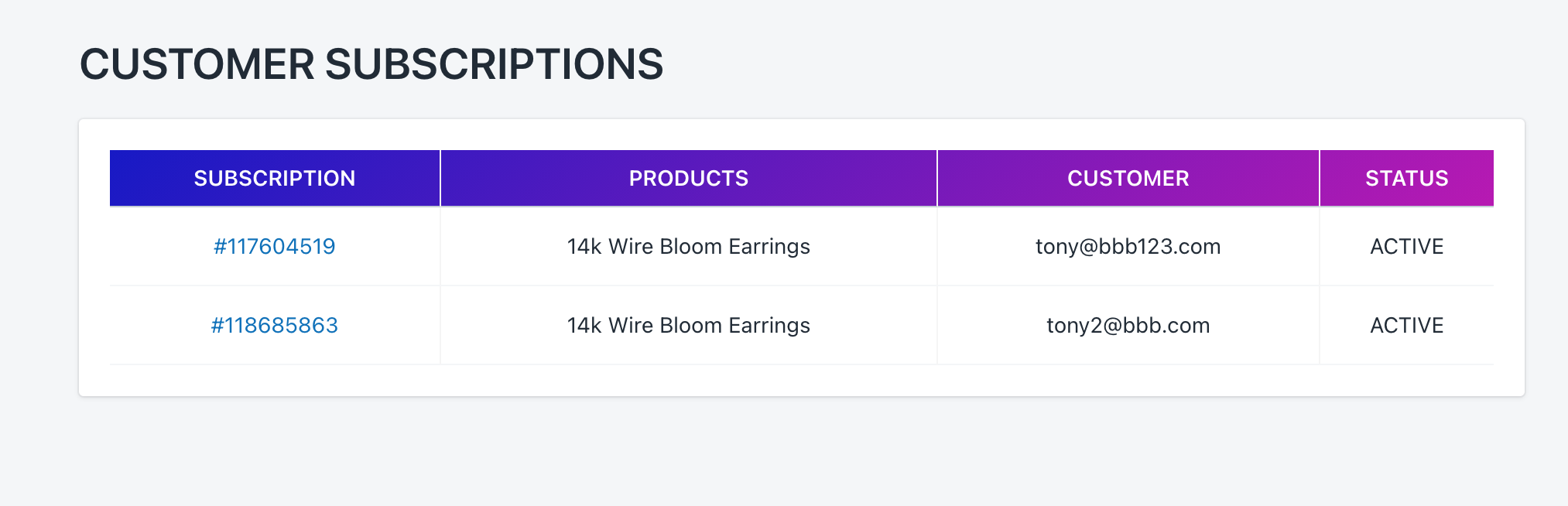
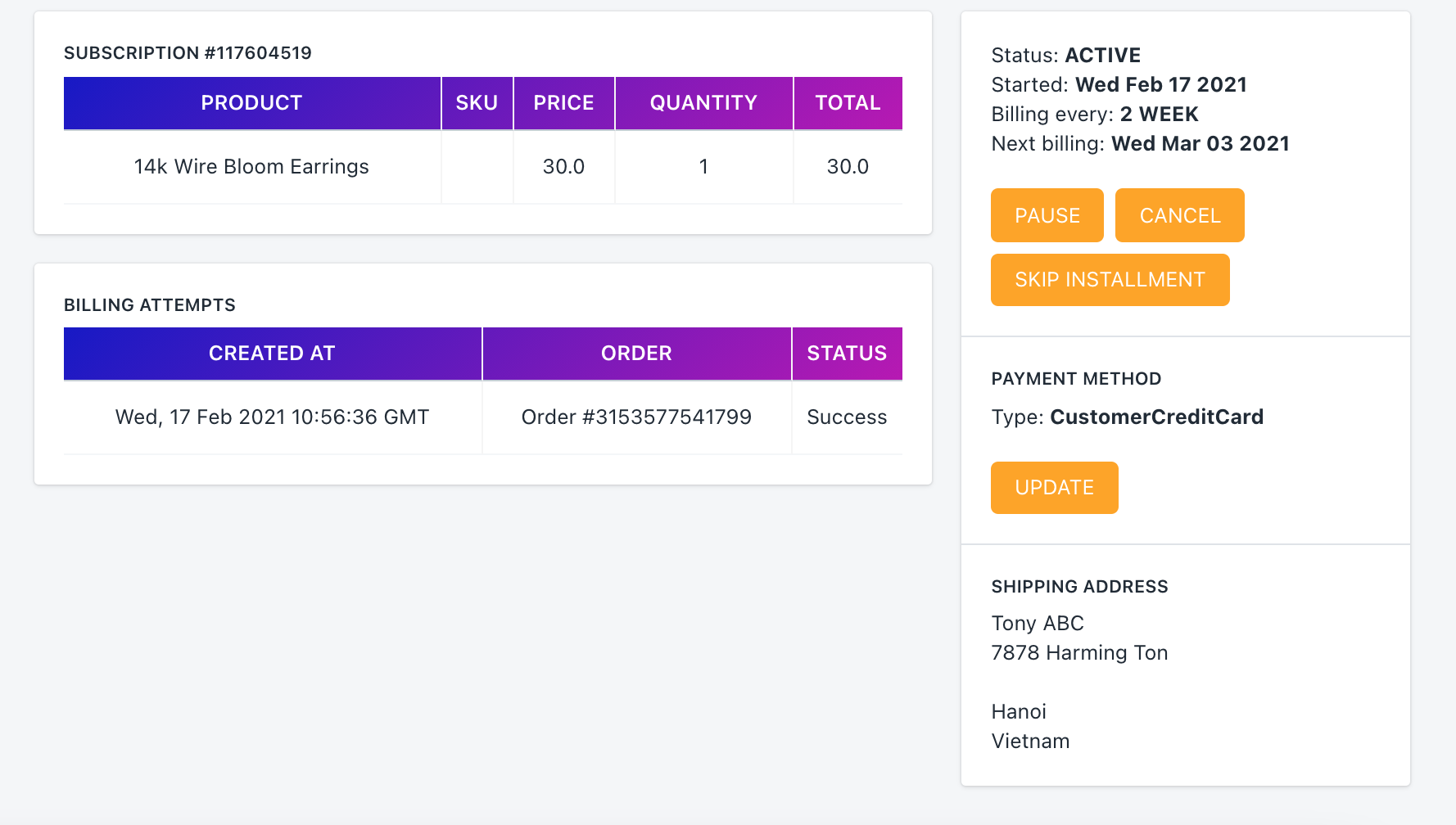
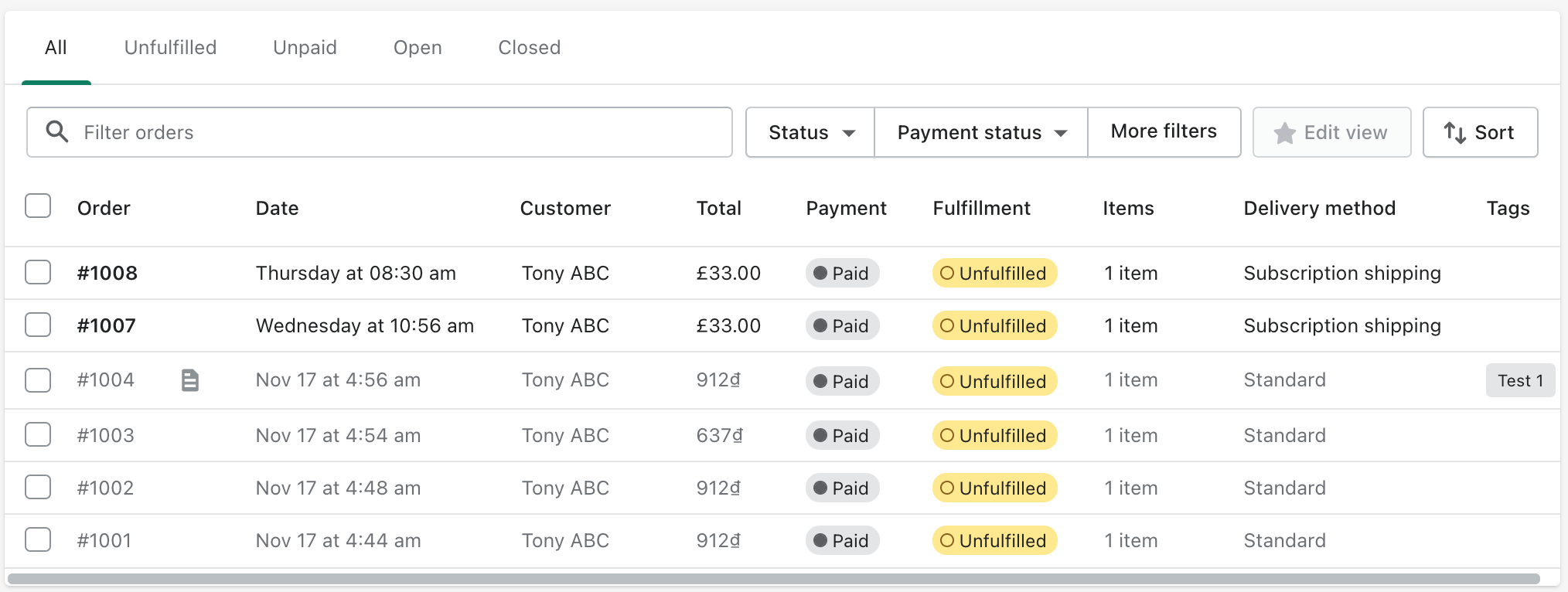
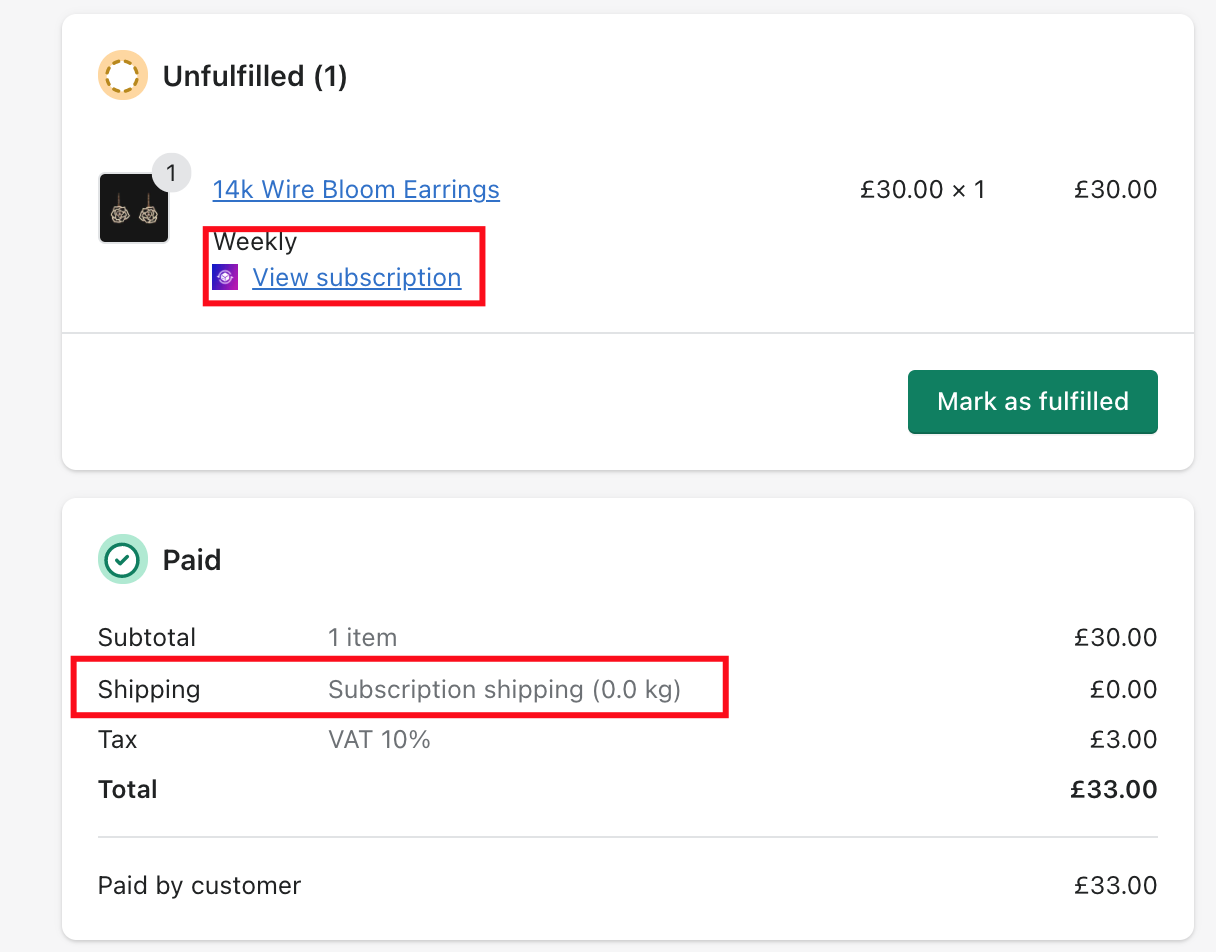
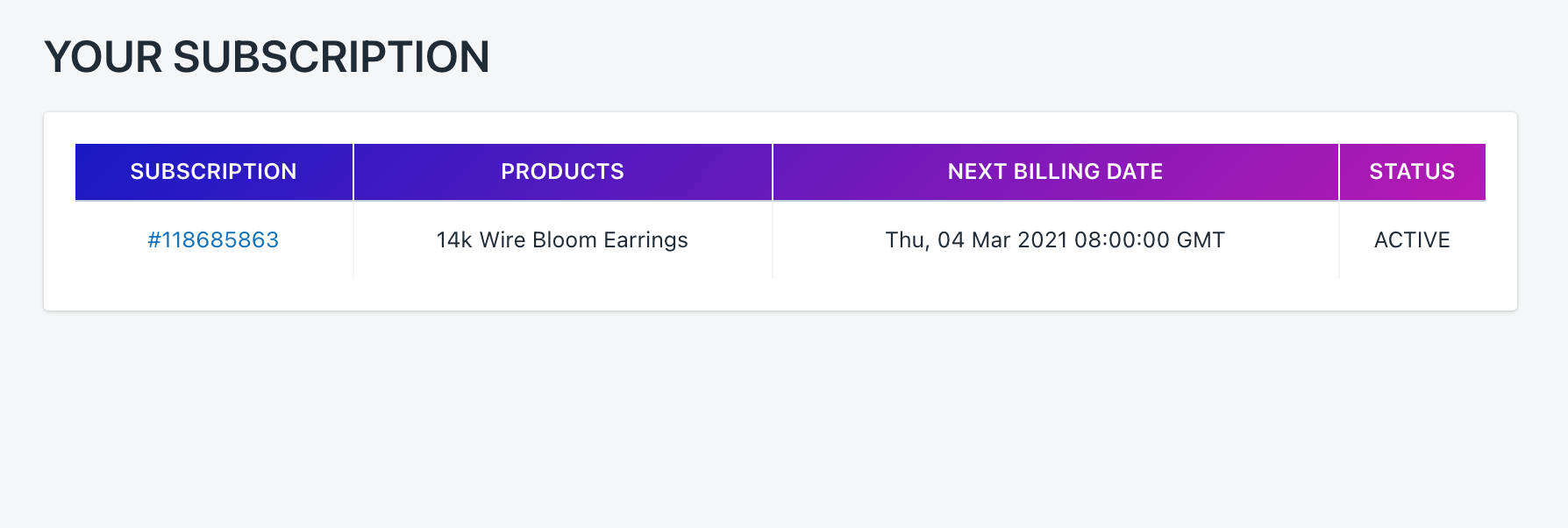
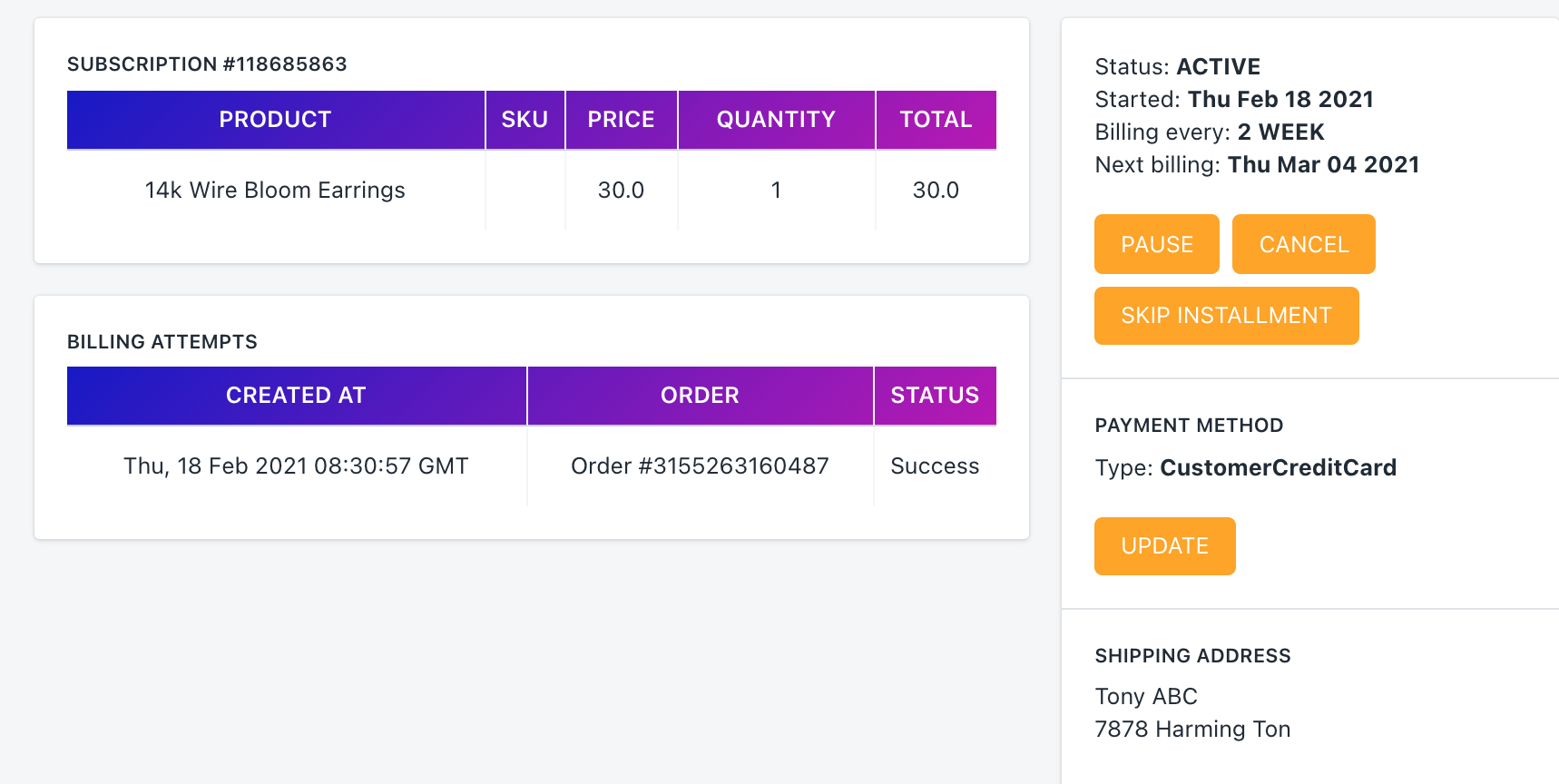
### Step 4: Create a few test transactions and review the generated orders on <a href="#step-4-create-a-few-test-transactions-and-review-the-generated-orders-on" id="step-4-create-a-few-test-transactions-and-review-the-generated-orders-on"></a>

* Subscriptions Tab:

![](http://wiki.bsscommerce.com/wp-content/uploads/2021/02/5.2.png)

* Subscription Detail Tab:
* ![](http://wiki.bsscommerce.com/wp-content/uploads/2021/02/5.3.png)Order Tab:

![](http://wiki.bsscommerce.com/wp-content/uploads/2021/02/5.4.png)

* Order Detail Tab:

![](http://wiki.bsscommerce.com/wp-content/uploads/2021/02/5.5.png)

### Step 5: Remember to turn the test mode on Shopify Payments on <a href="#step-5-remember-to-turn-the-test-mode-on-shopify-payments-on" id="step-5-remember-to-turn-the-test-mode-on-shopify-payments-on"></a>

**(Shopify Admin -> Settings -> Shopify Payments)**
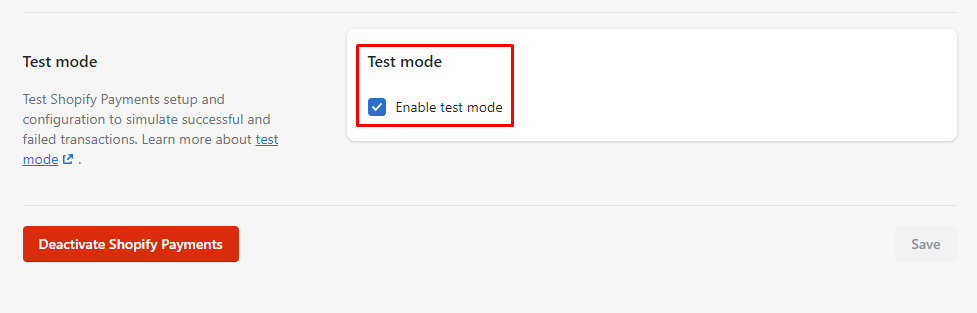
![test-mode](http://wiki.bsscommerce.com/wp-content/uploads/2021/04/test-mode.png)

### Step 6: Login as a test customer on the front-end of your website to view your customer portal and take some actions to check everything working properly. <a href="#step-6-login-as-a-test-customer-on-the-front-end-of-your-website-to-view-your-customer-portal-and-ta" id="step-6-login-as-a-test-customer-on-the-front-end-of-your-website-to-view-your-customer-portal-and-ta"></a>

\*Note: Depends on the different type of theme. The position of the "My Subscriptions" button may be different. If you want to change it to another position, please contact us for help.
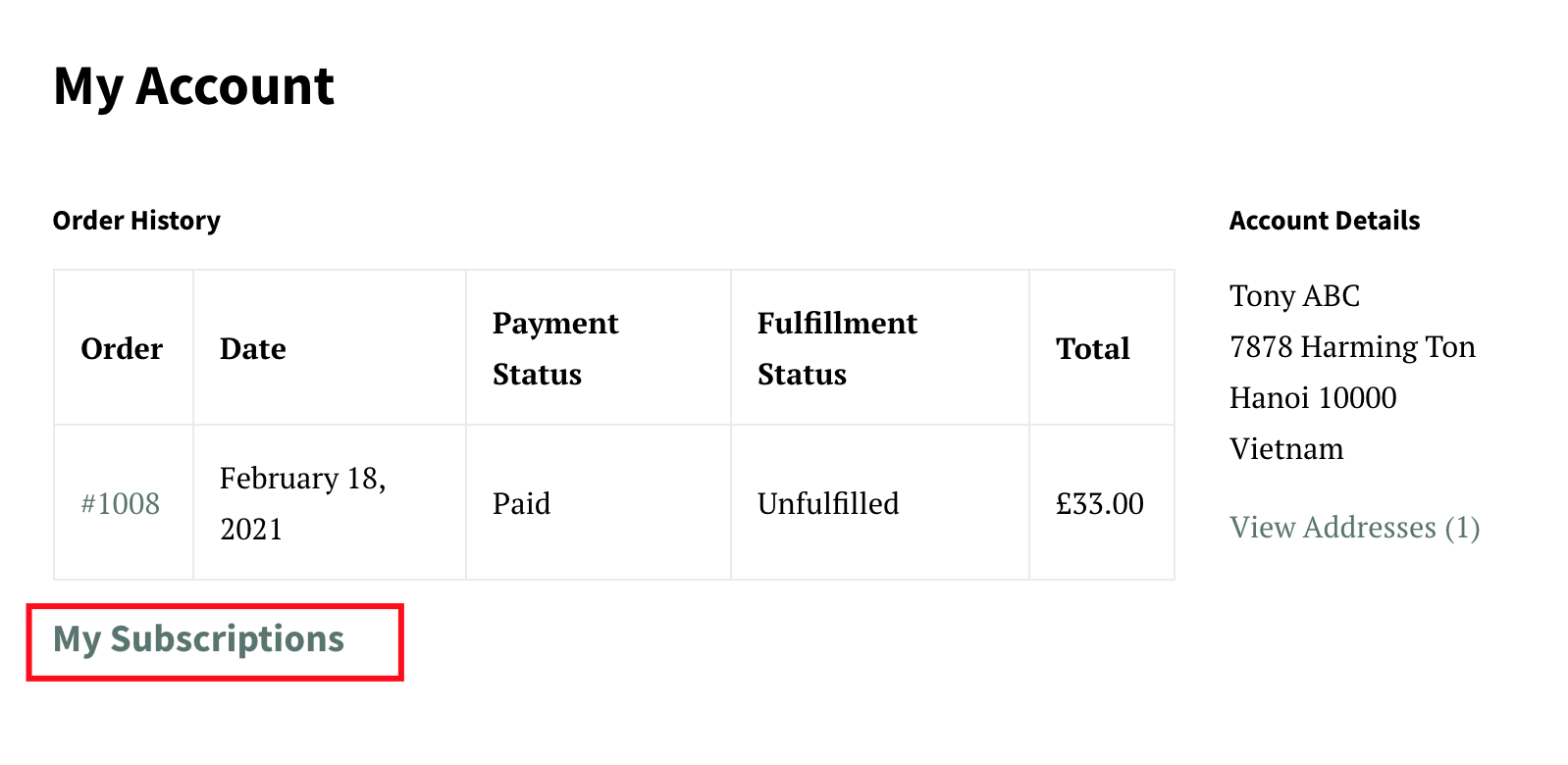
![](http://wiki.bsscommerce.com/wp-content/uploads/2021/02/5.6.png)

* On Subscription Management Page:

![](http://wiki.bsscommerce.com/wp-content/uploads/2021/02/5.7.png)

* On Subscription Detail:

![](http://wiki.bsscommerce.com/wp-content/uploads/2021/02/5.8.png)

If you have further questions, feel free to contact us at [**support-sbc@bsscommerce.com**](mailto:support-sbc@bsscommerce.com)**.**


---

# Agent Instructions: Querying This Documentation

If you need additional information that is not directly available in this page, you can query the documentation dynamically by asking a question.

Perform an HTTP GET request on the current page URL with the `ask` query parameter:

```
GET https://docs.easto.io/admin/how-to-run-test-transactions-configure-settings-and-start-selling.md?ask=<question>
```

The question should be specific, self-contained, and written in natural language.
The response will contain a direct answer to the question and relevant excerpts and sources from the documentation.

Use this mechanism when the answer is not explicitly present in the current page, you need clarification or additional context, or you want to retrieve related documentation sections.