> For the complete documentation index, see [llms.txt](https://docs.easto.io/llms.txt). Markdown versions of documentation pages are available by appending `.md` to page URLs; this page is available as [Markdown](https://docs.easto.io/features/build-a-box/static-box.md).
# Static Box
Lets customers choose a predefined subscription box size with a fixed price and select items within the allowed quantity.
## 1. **Introduction:**
**Static Box** allows you to create predefined subscription box sizes with fixed price ranges, giving customers a simple and structured way to choose the option that best fits their needs. Instead of dynamically unlocking discounts, you define clear box tiers - such as Small, Medium, or Large - each with its own pricing and item limits.
For each box size, you can set how many items customers are allowed to select within the defined range. Customers first choose the box size that matches their budget or consumption needs, then freely pick items up to the allowed quantity. This approach keeps pricing predictable while still offering flexibility in product selection.
Static Box is ideal for merchants who want to offer easy-to-understand subscription boxes with clear pricing tiers. By combining fixed box sizes with customizable item selection, you can reduce decision friction for customers while maintaining control over margins and box structure.
## **2. How to use:**
{% stepper %}
{% step %}
### Create box
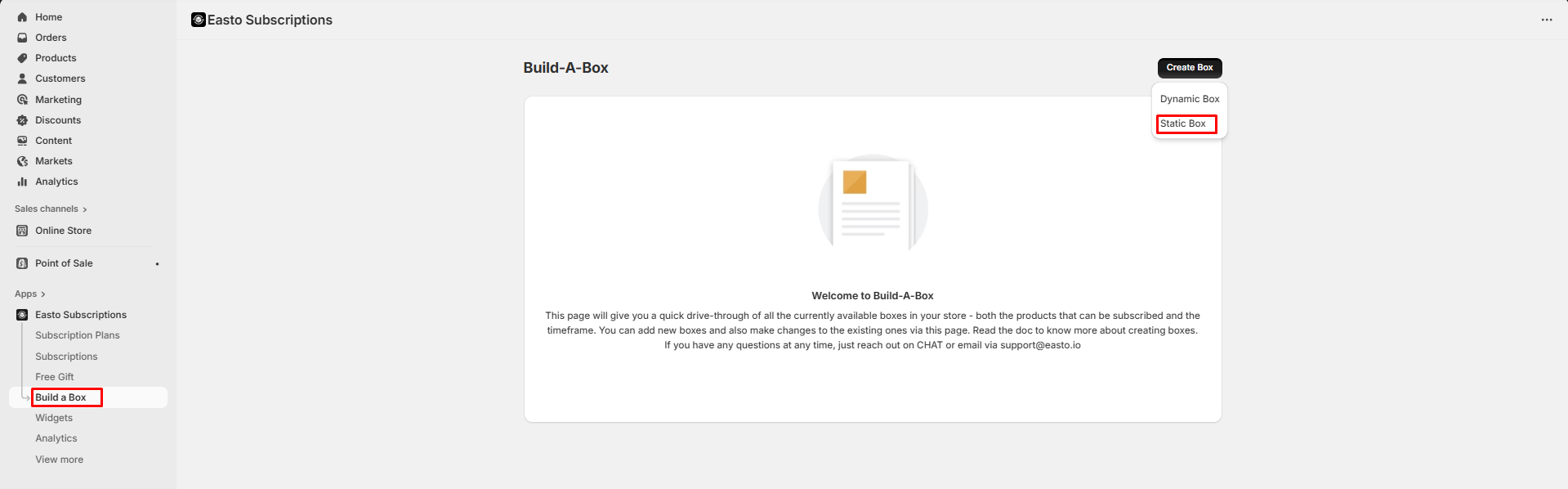
Go to Build a Box > Create Box. You can choose the Static or Dynamic Box to match your needs.
{% endstep %}
{% step %}
### Fill out box information
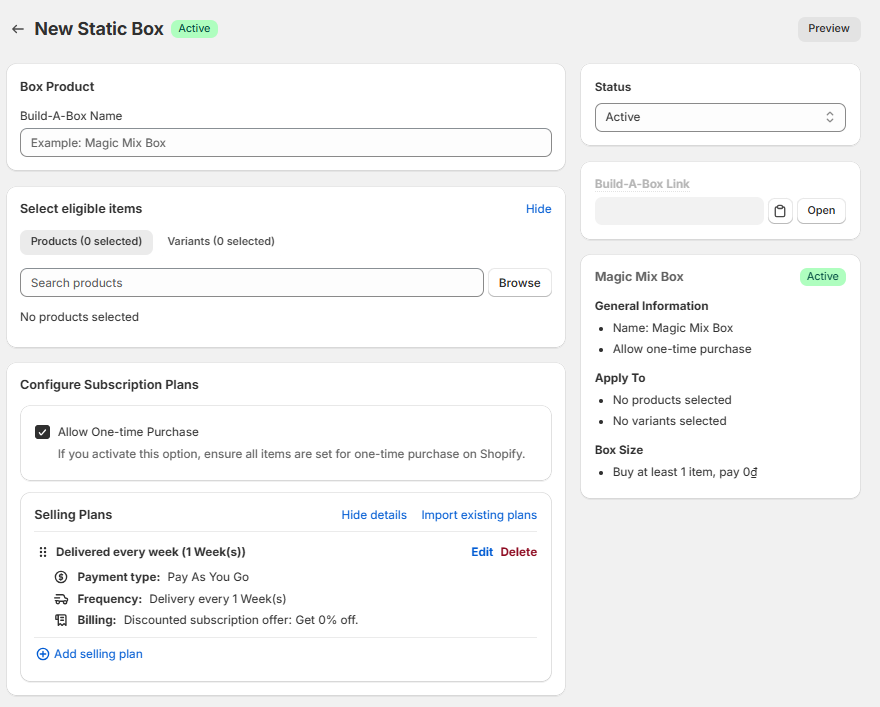
Fill out box information. You can see a live preview of the box on the right hand.
> Note: The Build a box Link will later on appear and become copiable once you've saved the box and re-opened it.
> {% endstep %}
{% step %}
### Set box size and price
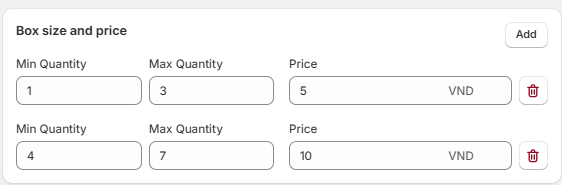
Define the rule as you wish. You can add any more rule you want! This is what motivates customers to purchase box other than single products, so make sure to set this with care!
> Note: Determine the Min and Max quantity of each variant so that box size ranges don't overlap
> {% endstep %}
{% step %}
### Preview
Click Preview on the top of the page to see how the box looks on your store front.
{% endstep %}
{% step %}
### Add Customize Box button
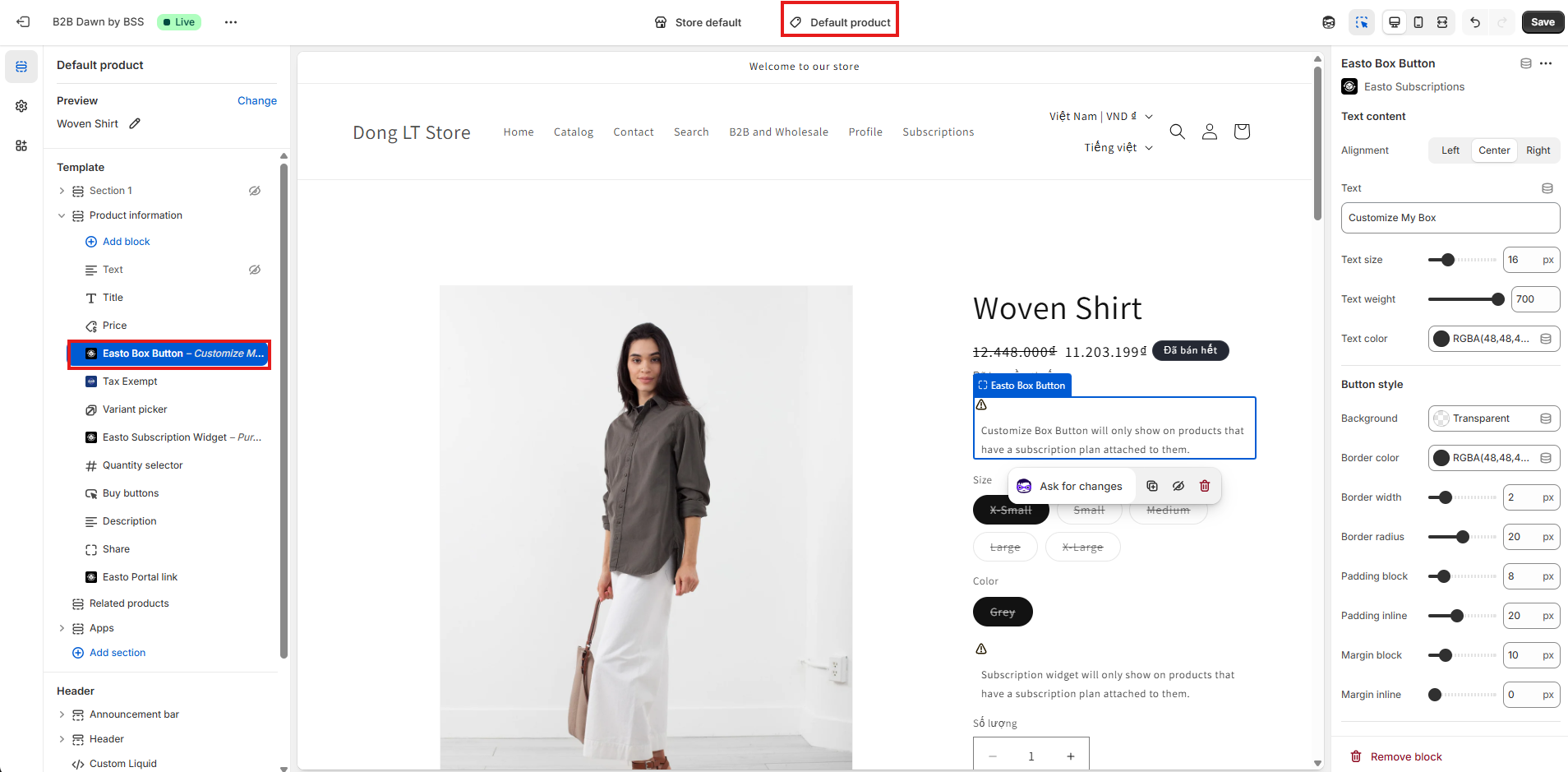
Go to Edit Theme on your Online Store, choose the Default product page, then add "Easto Box Button" app block into the Product Information section. Click Save to see it live on your store.
{% endstep %}
{% step %}
### Test
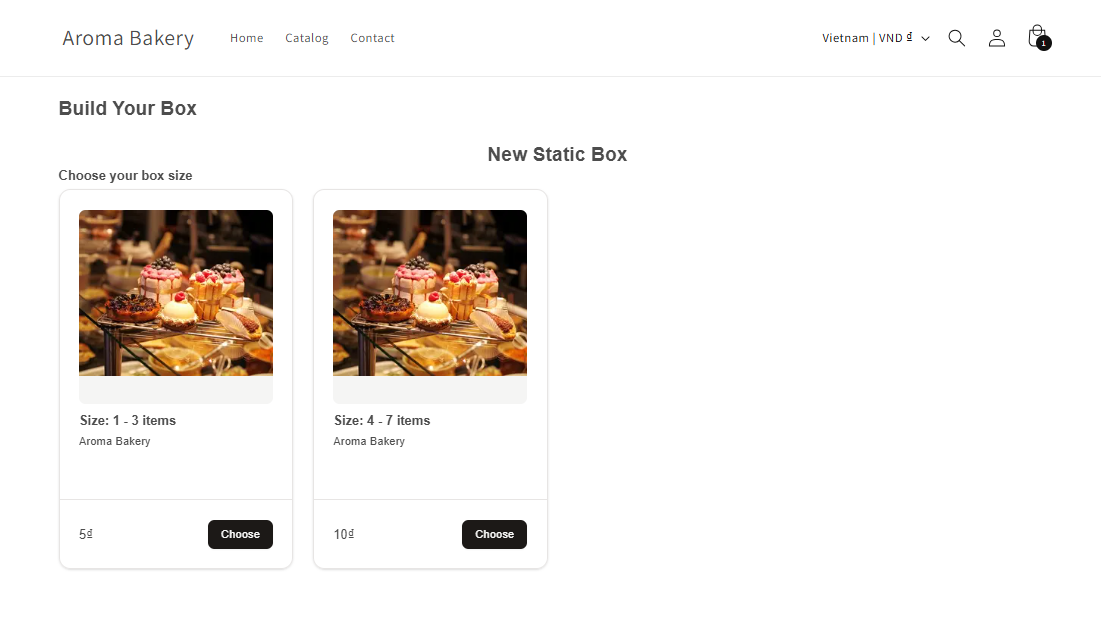
Test and make sure everything works well! The box sizes in step 3 will appear here
{% endstep %}
{% step %}
### Add product picture
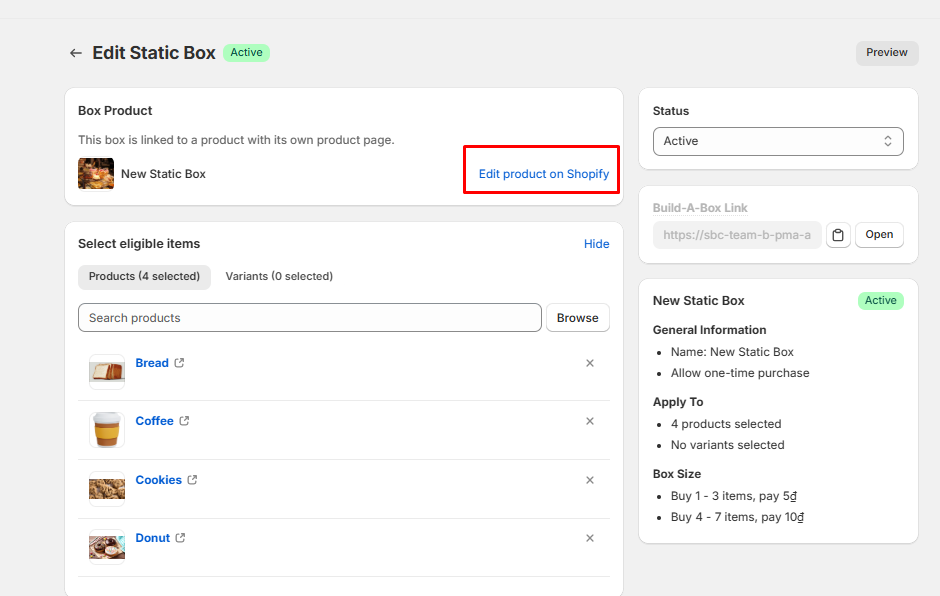
After saving the box, go back to add a picture and make it more attractive. You can do so by clicking "Edit product on Shopify" in the "Box product" card here.
{% endstep %}
{% endstepper %}
*If you need help, feel free to reach out to us via in-app* [***Live chat***](https://go.crisp.chat/chat/embed/?website_id=c4ae10a3-f762-4968-b35a-c931caf62a96)***,*** [***Book a call***](https://calendly.com/easto-support/30min) *or at* [***support@tech-arms.io***](mailto:support@tech-arms.io)***.***