> For the complete documentation index, see [llms.txt](https://docs.easto.io/llms.txt). Markdown versions of documentation pages are available by appending `.md` to page URLs; this page is available as [Markdown](https://docs.easto.io/features/build-a-box/dynamic-box.md).
# Dynamic Box
Let customers build their own subscription boxes with configurable item limits and live tiered discounts displayed in real time.
## 1. **Introduction:**
**Dynamic Box** is a flexible subscription box solution that allows you to offer fully customizable subscription experiences while maintaining clear control over pricing and structure. Instead of selling a fixed bundle, you can let customers build their own box by selecting products from a predefined set, making subscriptions more engaging and personalized.
With Dynamic Box, you can define **minimum and maximum item limits** to guide how customers build their boxes. This ensures each box meets your business requirements while still giving customers freedom of choice. As customers add or remove items, they can instantly see **live, tiered discounts** applied in real time, helping them understand the value they unlock and encouraging higher item counts.
Dynamic Box is especially useful for merchants who want to increase average order value and subscription retention by combining customization with transparent pricing. By clearly displaying item limits and real-time discounts on the storefront, customers can make confident purchasing decisions while enjoying a dynamic, interactive subscription experience.
## **2. How to use:**
{% stepper %}
{% step %}
### Create box
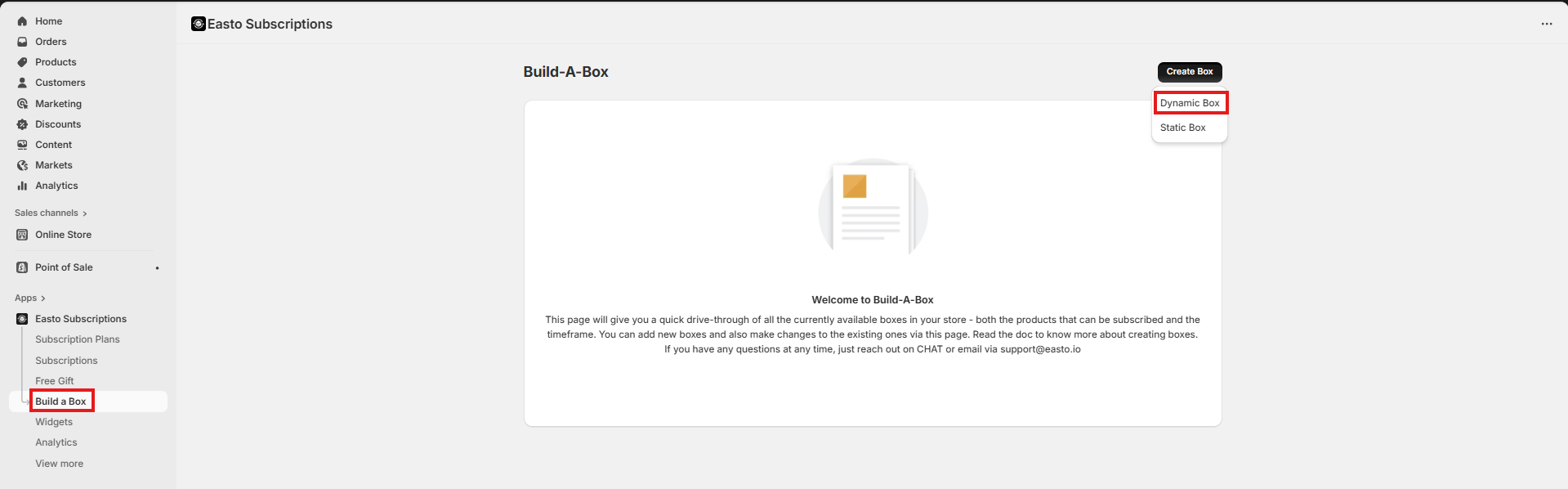
Go to Build a Box > Create Box. You can choose the Static or Dynamic Box to match your needs.
{% endstep %}
{% step %}
### Fill out box information
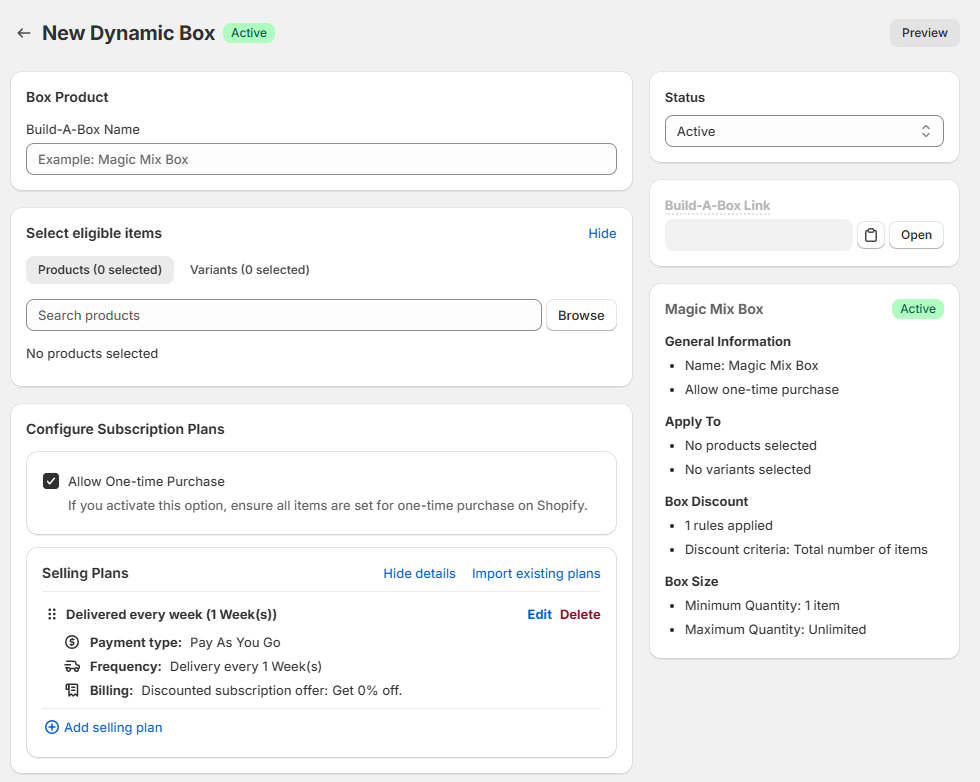
Fill out box information. You can see a live preview of the box on the right hand.
> Note: The Build a box Link will later on appear and become copiable once you've saved the box and re-opened it.
> {% endstep %}
{% step %}
### Set box discount
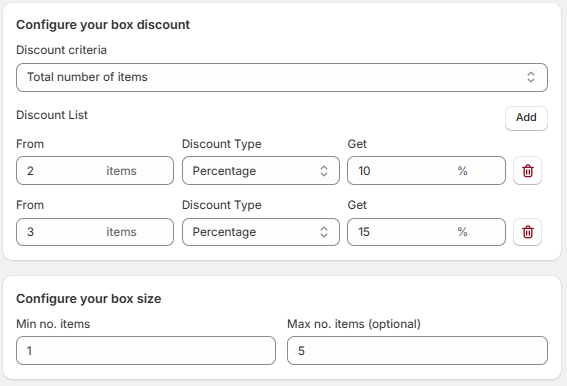
Define the rule as you wish. This is what motivates customers to purchase box other than single products, so make sure to set this with care!
{% endstep %}
{% step %}
### Preview box
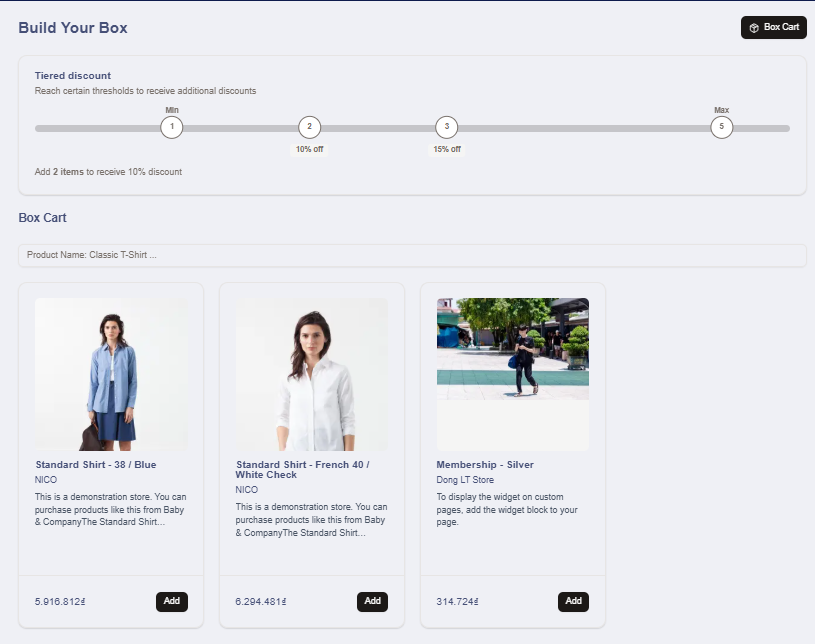
Click Preview on the top of the page to see how the box looks on your store front.
{% endstep %}
{% step %}
### Test
Test and make sure everything works well! The box discount and min/max quantity in step 3 will appear here
{% endstep %}
{% step %}
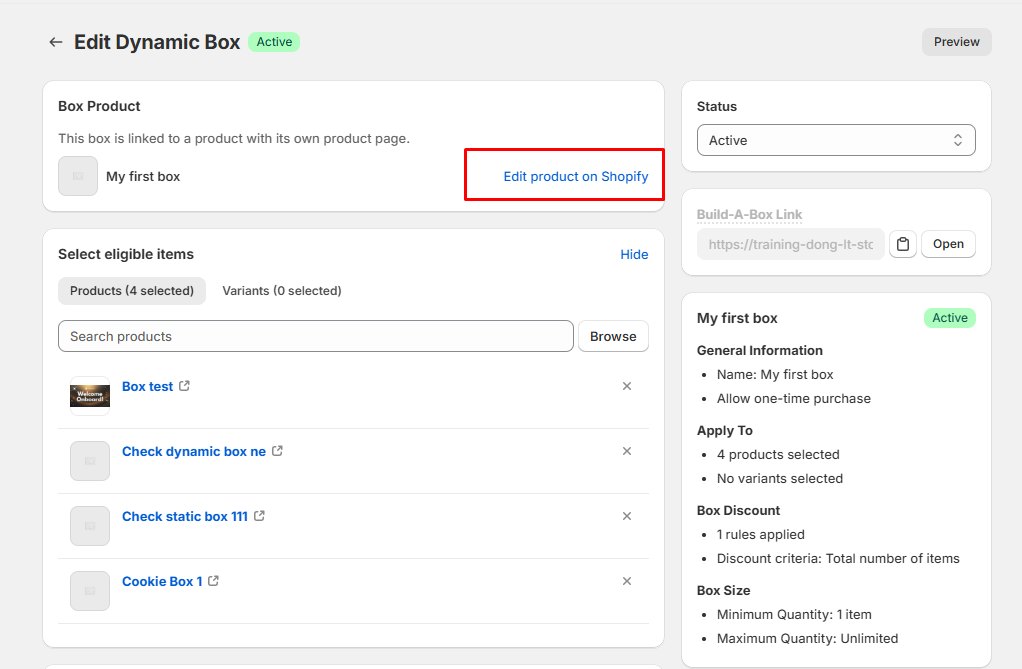
### Add product picture
After saving the box, go back to add a picture and make it more attractive. You can do so by clicking "Edit product on Shopify" in the "Box product" card here.
{% endstep %}
{% endstepper %}
*If you need help, feel free to reach out to us via in-app* [***Live chat***](https://go.crisp.chat/chat/embed/?website_id=c4ae10a3-f762-4968-b35a-c931caf62a96)***,*** [***Book a call***](https://calendly.com/easto-support/30min) *or at* [***support@tech-arms.io***](mailto:support@tech-arms.io)***.***